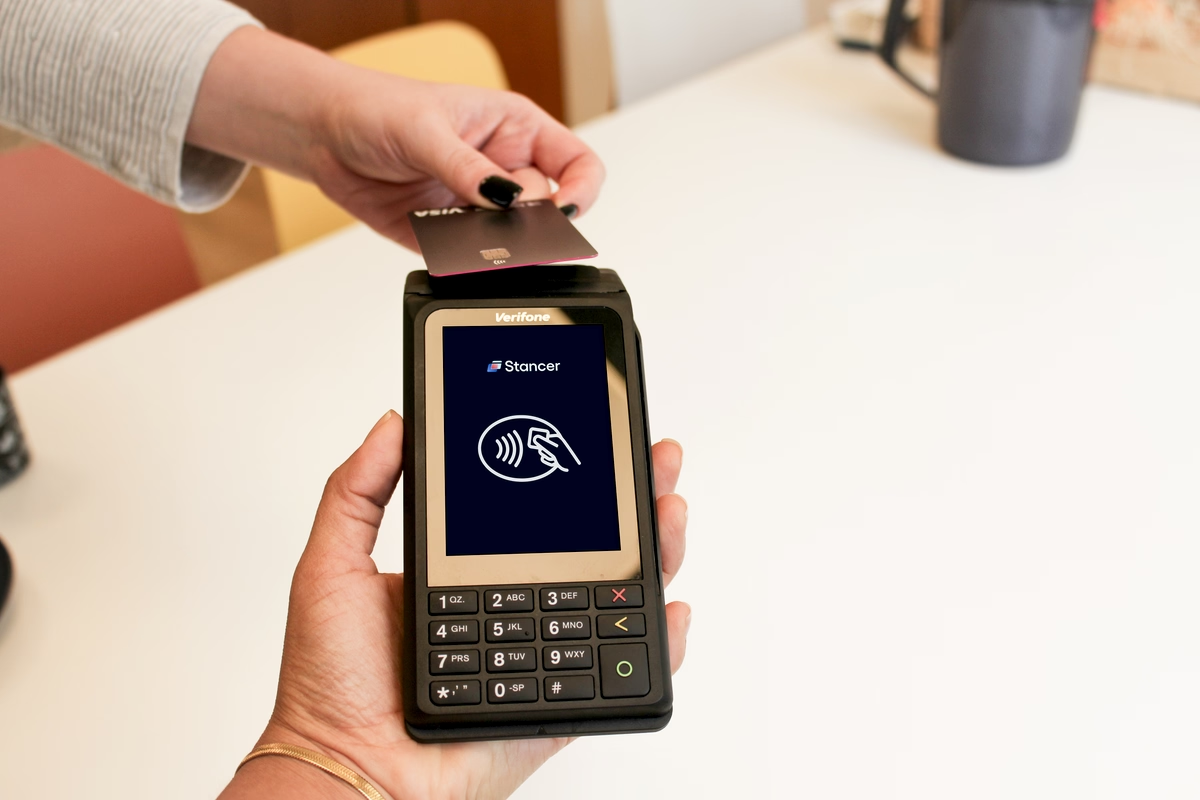
In the competitive world of commerce, having a reliable and versatile payment system is essential. At Stancer, we understand this need and offer the Verifone POS, an electronic payment terminal equipped with 4G GPRS connectivity and a pre-installed Free SIM card.
The Verifone payment terminal allows you to process transactions with ease by accessing a Wi-Fi network when available. In addition, with the pre-installed Free SIM card, your Verifone POS adapts to various selling environments. Whether you're at an open-air market, a trade fair, or in your store, 4G GPRS connectivity ensures uninterrupted payment service, wherever you are.
Follow the steps below to make the most of its connectivity options.
Step 1: Power On
When you receive your POS, plug the terminal's charging dock into the mains and place the terminal on top of it. The terminal will automatically begin charging.
Powering on your terminal marks the beginning of a smooth and intuitive user experience.
Step 2: Activating Wi-Fi
Wi-Fi, complementary to the 4G network, provides enhanced connectivity in covered areas. Follow the simple instructions to activate or deactivate Wi-Fi according to your needs:
- Click the green "Settings" button on your POS touchscreen. Then, click on "Communication" and "Wireless Networks".
- To activate Wi-Fi, click on "Wi-Fi", "Enable module" and "Yes". If you see "Enabling" displayed on your POS screen, the module is being activated.
- If you want to deactivate Wi-Fi, simply press "Disable module".
- Press the yellow "<" button twice on your terminal's touchscreen keyboard to return to the "Communication" menu.
Step 3: Activating 4G GPRS
4G GPRS guarantees extended network coverage. When Wi-Fi is unavailable, this technology is crucial to maintain transaction continuity. Learn how to activate and configure GPRS for absolute peace of mind.
To activate 4G, start by accessing the "Communication" menu. If you're following all the steps in this guide, you're already there; if not, click the green "Settings" button on your screen in the main menu, then "Communication".
Choose "Backup access" from the menu options. Click on "GPRS". If the connection has been established, you'll arrive at the "GPRS" menu. If the connection has not been established, contact Verifone support at 01 57 97 99 44.
Step 4: Configuring the Wi-Fi Network
Configure Wi-Fi to guarantee a secure and stable connection. Back in the "Communication" menu, choose "Primary access".
- Click on "Wi-Fi", then "Configure Wi-Fi".
- Choose "Search for networks", then select the desired network. Enter your password using the touchscreen keyboard on your POS and click the green "O" button to validate.
- If the connection is successful, you'll see the message "Connecting", then "Connection successful" on your POS screen. If you made an error, delete the selected network and start again by clicking "Search for networks".
Step 5: Setting Up the Stancer Solution
The Stancer gateway is at the heart of your POS's efficiency. It facilitates communication between your terminal and the network, ensuring fast and secure transaction data transmission. Follow the instructions to correctly configure this gateway.
- In the "Wi-Fi" menu ("Communication", then "Primary access" and "Wi-Fi"), click on "Gateway". From the available gateways, choose "Stancer", then click on "Double". Select "Stancer" again.
- Check the pre-filled IP address and validate by clicking the green "O" circle on your touchscreen keyboard, then do the same with the pre-filled port.
- Select the extended protocol, then click on "Yes".
- Re-verify the pre-filled IP address and pre-filled port.
You are now back at the "Wi-Fi" menu. Press the yellow "<" button on your touchscreen keyboard until you return to the main menu.
Your payment terminal is now connected to the internet (Wi-Fi and GPRS). You can find all the connection information in the horizontal bar at the top of the screen.
For more information on connecting the Verifone POS to Wi-Fi or the 4G network, refer to the Stancer documentation.
With these steps, you ensure optimal performance of your Verifone POS, guaranteeing fast, secure, and reliable transactions.